![6-1.png]](https://help.rentalguardian.com/hs-fs/hubfs/6-1.png?height=50&name=6-1.png)
How to View your Bill in your Account
Step 1: Sign in to your account
Log in to your RentalGuardian account using your usual username and password.
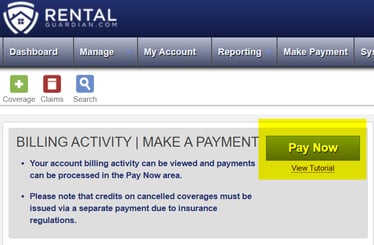
Step 2: Select Pay Now
Once you’re logged in, look for the blue “Pay Now” button on your dashboard and select it.
✅ Even if you’re not making a payment, this is where you can view and review your billing details. Please note, this serves as a running invoice and can be viewed at any time. In the future, we will have live invoices sent on the last day of the month, but until that time, this PayNow feature is the most accurate.
Step 3: Review your account balance
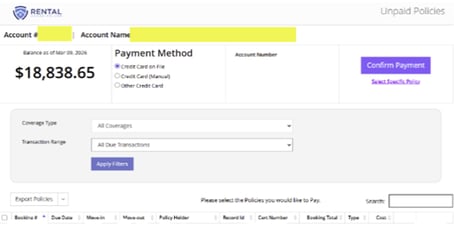
At the top of the page, you’ll see:
Your Account Name
Your Total Balance Due
Your Account Number
This gives you a quick snapshot of your current balance before reviewing individual transactions. Please note, the screenshot below is an example and sensitive information has been scrubbed for privacy reasons.
Step 4: Choose a Transaction Range
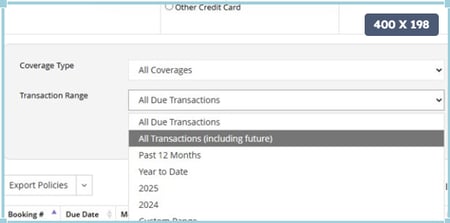
Use the Transaction Range dropdown to control which charges you want to see.
You can select from:
All Due Transactions – shows everything currently outstanding
Past 12 Months – view charges from the last year
Year to Date – view charges from the current calendar year
Custom Range – select your own start and end dates
Step 5: Use a Custom Date Range (optional)
If you choose Custom Range:
1. Select the start date using the calendar dropdown
a. Example: February 1
2. Select the end date using the calendar dropdown
a. Example: February 28
3. The system will automatically update to show only transactions within those dates
✅ This is helpful if you’re reconciling a specific month or billing period.
Step 6: Review transaction details
Your transactions will display in a list below, including:
· Booking or policy reference
· Due date
· Coverage type (i.e. TI = Travel; PPP = Damage; BG = Booking Guardian)
· Cost
· Status
You can scroll through the list to review individual charges.
Step 7: Export your billing details (optional)
If you’d like a copy for your records:
· Use the Export Policies option to download the transaction list
This is useful for accounting, reconciliation, or sharing internally
Step 8: Confirm Payment
Depending on what has been filtered, will automatically be selected. You can confirm this payment with the payment method on file.
Helpful Tips
· You can review your bill without submitting a payment
· Changing the transaction range does not affect your account — it only changes what you’re viewing
· If you see a charge you have questions about, our Support team is happy to help at support@rentalguardian.com.